
Project Phases
A project in C.Scale moves through design phases. Each phase has its own scenarios and its own Basis of Design, so you can keep earlier work while the design develops. The baseline belongs to the project, not to a phase, and appears in every phase.
The phases, in order, are Pre-Design, Schematic Design, Design Development, Construction Documents, Bidding, Construction Administration and As-Built.
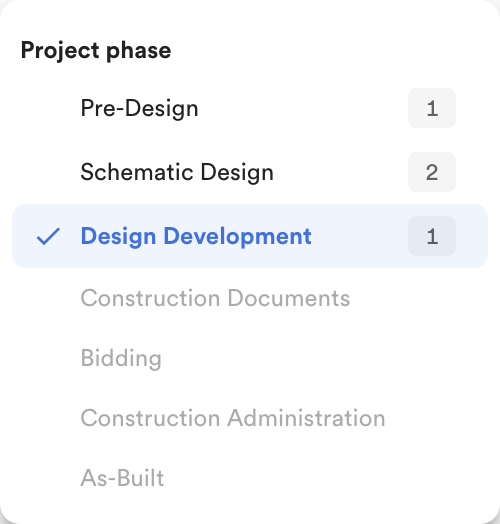
The Project phase menu, with Design Development checked and the number of scenarios in each active phase.
Choose a phase when you create a project
Section titled “Choose a phase when you create a project”When you create a project, select its current phase in Project Phase. The default is Pre-Design.
If you open a project that has no phase yet, C.Scale asks you to choose one in Confirm Project Phase. Its existing scenarios are assigned to that phase.
Add a phase
Section titled “Add a phase”Click New Phase beside the phase switcher above the scenario list. Then choose one of two options:
- Advance to the next phase, shown with that phase's name. C.Scale duplicates scenarios from the project's current phase into the next one. The Basis of Design is always duplicated, and you choose which other scenarios to bring. The baseline is never duplicated, because it already appears in every phase. If the current phase has no Basis of Design, C.Scale first asks you to pick one. To advance, the current phase needs at least one scenario besides the baseline.
- Add a Different Phase. C.Scale opens an empty phase that you choose. Your other phases stay unchanged.
Click Advance or Add to finish. C.Scale opens the new phase.
Switch phases
Section titled “Switch phases”Click the phase name above the scenario list and select a phase. The menu shows how many scenarios each phase holds. Phases you have not added yet are unavailable. A warning icon marks any phase with no Basis of Design.
To move a scenario to another phase, open its menu and select Move to Phase.
Basis of Design in each phase
Section titled “Basis of Design in each phase”Set a Basis of Design for each phase. C.Scale uses it for exports, compliance and portfolio comparison. See Set Basis of Design Scenario.
Compare scenarios across phases
Section titled “Compare scenarios across phases”Once a second phase holds scenarios, each compare chart has a phase switch. Select the phase you are viewing to compare its scenarios, or All phases to compare the Basis of Design of each phase side by side. The baseline appears in both.