
Assigning Materials
Tally 2.0 needs a definition for each Revit family and material in your Object of Study. A definition records the material's LCIA dataset, its takeoff method, and optionally its service life, reuse, waste factor and end-of-life scenario. Define materials by hand, or review suggestions in Map Materials and apply them in one step.
Define one material by hand
Section titled “Define one material by hand”- In the Project Browser, select a family or layer. Open its menu and click Set Material, or Change Material if it already has one.
- In Entries & Materials, find the material or entry and select it. Use Search... to filter the list.
- In Define Materials & Takeoff Methods, confirm the LCIA Dataset and choose a Takeoff Method. The methods offered depend on what Revit measures for the element and on the material.
- Optionally set Service Life, Reuse (Existing to Remain or Salvaged), Waste Factor and End of Life Scenario.
- Click Save.
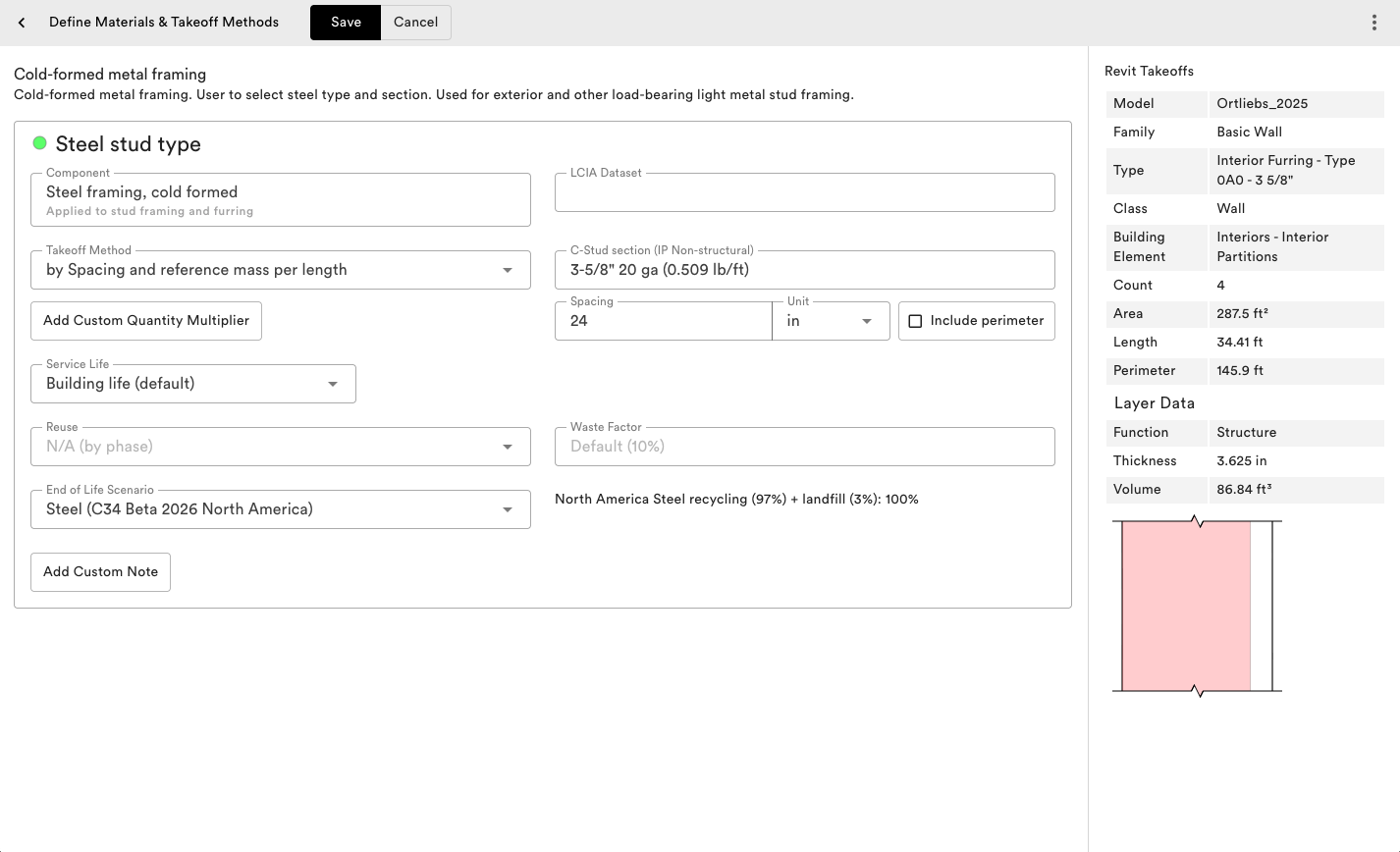
Choose the material behind each layer, then set its takeoff method.
If other families in the same Revit category can take the same definition, Apply to other elements opens when you save. Select the families to apply it to, or click Check all undefined, then click Apply to.
To reuse a definition elsewhere, use Copy Definition and Paste Definition in the family menu.
Map Materials
Section titled “Map Materials”Tally 2.0 suggests definitions for the materials in your model. In the Project Browser, click Map Materials, or Review on the mapping suggestions banner.
Each row shows a Revit material, the suggested Tally definition, and where the suggestion came from:
- Your Mapping. You confirmed the suggestion or picked the definition yourself.
- Rule. A saved mapping rule matches the material.
- Previous Mapping. You mapped this material before.
- Colleague's Mapping. Someone on this project or in your firm mapped this material before.
- Exact Match. The material's name matches a material in the Tally 2.0 catalog.
- AI Mapping. C.Scale's AI suggests the definition, or reuses an earlier mapping of a similar material.
Hover over a source to see its scope, who the mapping came from, and why. Filter the rows with All, Included, Needs Review and Excluded.
AI Mapping suggestions are always marked Needs Review. Any other suggestion is marked Needs Review when it does not fit this material as is, for example an earlier mapping from another type or at a different thickness.
- For each row marked Needs Review, check the suggestion and click Confirm if it is offered, or click Edit to choose a different definition.
- To leave a material without a definition, click the eye icon to exclude it. Tally 2.0 sets it as a Dummy.
- Click Apply mappings to write the confirmed and included definitions to the model. Rows still marked Needs Review are not applied.
Export and import assignments
Section titled “Export and import assignments”Copy material assignments from one model to another, for example between project phases or from a template. If you don't see these menu items, update Tally 2.0.
- In the source model, open the account menu (your avatar) and click Export assignments. Tally 2.0 saves a .json file.
- In the target model, click Import assignments, then Choose file and Apply.
Tally 2.0 matches each family type by its Revit element ID, or by category, family and type name. Family types that already have definitions keep them. When the import finishes, Tally 2.0 lists what it matched, kept and skipped. Click Download report to save the list.