
Modeling in Tally 2.0
This page walks the shape of the tool rather than every field, so you know where you are and what to do next.
The basic workflow
Section titled “The basic workflow”In Tally 2.0, the basic workflow is:
- Set the Object of Study. Tell Tally what counts as the building.
- Connect to C.Scale. Link the model to a C.Scale project and scenario, so your takeoffs land somewhere the rest of your team can use them. Not mandatory, but we recommend it on every project.
- Work through the Project Browser. Define every family and material in scope.
- Assign Entries & Materials. Match each Revit family to the Tally material database.
- Define Materials & Takeoff Methods. Set how Tally measures each material.
- Working with linked models. Define materials on elements that come from a link, and know where those definitions live.
- Read the Results. Read the impacts, and export them.
You don't have to finish one step before looking at the next. Results update as definitions change, so it's normal to move back and forth.
Set the Object of Study
Section titled “Set the Object of Study”The Object of Study is where you tell Tally what to include: which categories, worksets, phases, and linked models make up the building.
- If your project reuses an existing building and you want to see the savings from reused materials, include the Existing phase.
- To compare Revit design options, switch to Design Option Comparison and select at least two. The order in which you select them determines the order in which they appear in results. Primary options are included by default.
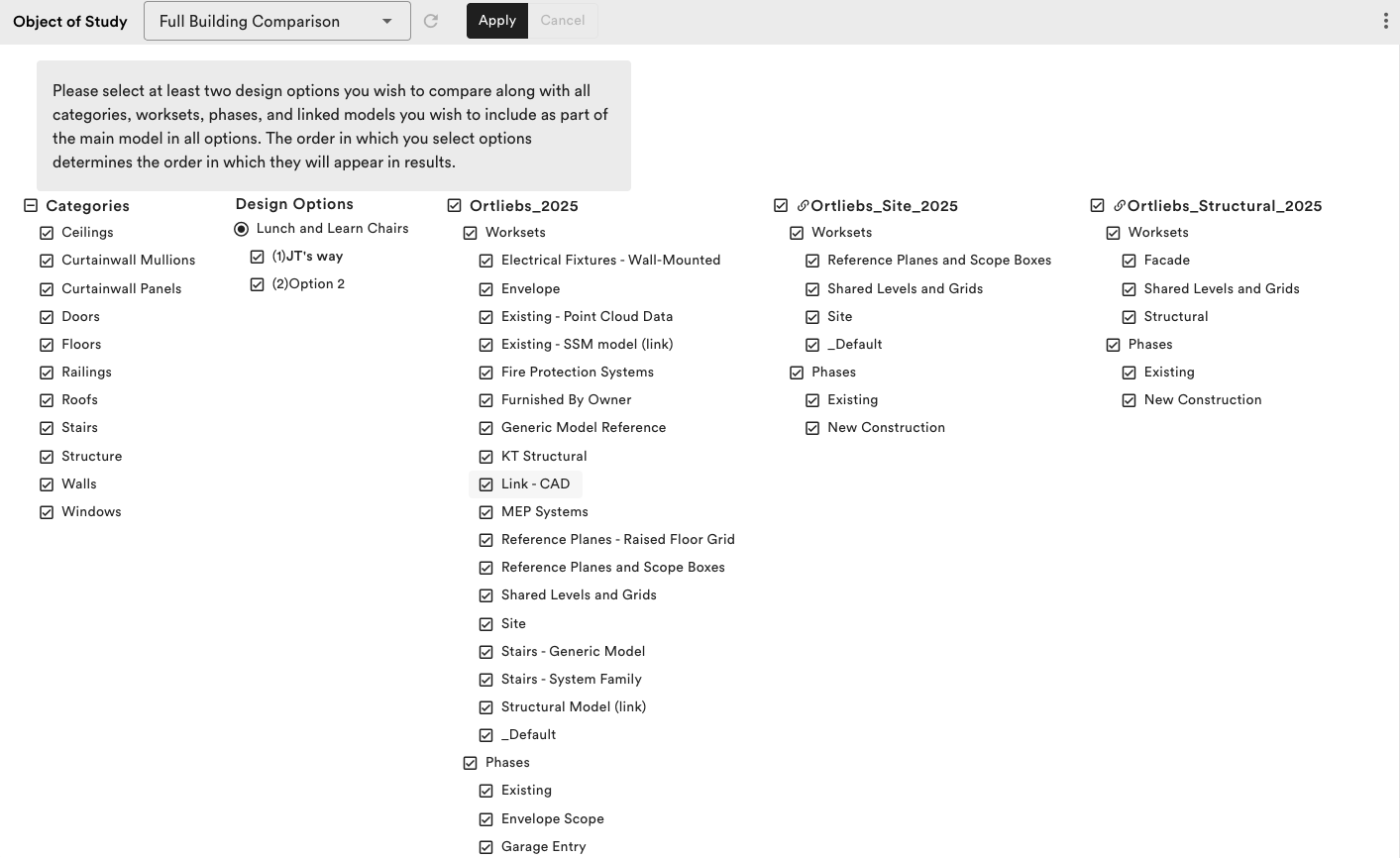
Select the categories, worksets, phases, and linked models that make up the building.
Connect to C.Scale
Section titled “Connect to C.Scale”Connecting a Revit model to C.Scale lets you push its takeoffs into a C.Scale project as a scenario, so people who don't open Revit can work with the same numbers.
Connect every project
Section titled “Connect every project”Connecting is not required. You can run a complete assessment in Tally without ever linking to C.Scale. We recommend connecting anyway, on every project, because a connected scenario does things Tally on its own cannot:
- Reporting. Connected scenarios are what C.Scale's project reporting runs on. Reporting from Tally takeoffs, including AIA 2030, LEED, and CALGreen, is planned for Tally 2.0's commercial release in January 2027.
- The whole building, not just the model. A C.Scale project covers what the Revit model doesn't: services, site, refrigerants, and the rest. Connecting puts your Tally results in that context instead of leaving them on their own.
- Portfolio comparison. A connected scenario sits in your organization's portfolio, so you can compare the project against your others.
- Results outside Revit. Anyone in your organization can open the scenario in C.Scale and work with the same numbers without opening Revit.
What the connection covers
Section titled “What the connection covers”The connection carries structure, enclosure, and interiors only. Materials in any other category, including mechanical, electrical, plumbing, pipes, and light fixtures, stay in Tally and are not sent to C.Scale.
Connect a model
Section titled “Connect a model”Open Project Data and find the C.Scale Connection card. Choose a Project, then choose a Scenario, then click Connect. You can also reach this from the C.Scale button in the Project Browser header.
Connecting pushes your takeoffs to C.Scale straight away, and writes the link only if that push succeeds. If the push fails, the model is left as it was rather than connected but never synced.
The connection is stored on the Revit model, so it travels with the Revit file.
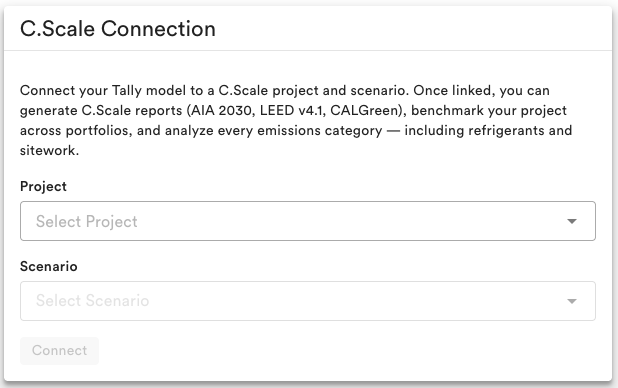
Push takeoffs with Sync
Section titled “Push takeoffs with Sync”Tally never syncs on its own. Takeoffs are sent to C.Scale when you connect a model, when you change its connection, and when you click Sync, and at no other time.
To sync, click Sync on the C.Scale Connection card, or the C.Scale button in the Project Browser header.
Note that a sync replaces the structure, enclosure, and interiors materials already in the target scenario with what your Revit model currently holds. If someone has edited those materials in C.Scale, a sync will overwrite that work, so it's worth a word with them first.
The last-synced time records successful syncs only. If a sync fails, your existing connection is left exactly as it was rather than half-applied, so you can fix the problem and try again.
Change or disconnect
Section titled “Change or disconnect”Change re-points the model at a different project or scenario. Like connecting, it pushes first and updates the link only if that push succeeds.
Disconnect clears the link immediately. Everything you have already synced stays in C.Scale, and the scenario is yours to keep working on there. Disconnecting a Tally model never removes data from C.Scale.
Project and scenario names are read from C.Scale each time, so if someone renames or deletes a scenario there, you'll see it the next time the model loads.
If you don't connect
Section titled “If you don't connect”If you choose not to connect, enter the project information by hand in Project Data instead, and your assessment stays in Tally and the Revit model.
This is the secondary path. You give up everything listed above: nobody can reach your numbers without opening Revit, the scenario doesn't exist in C.Scale to report on or compare against your portfolio, and the next person to open the model has nothing to sync to.
Work through the Project Browser
Section titled “Work through the Project Browser”The Project Browser lists the families and materials in your model and shows which ones are already defined. Work through it until everything in your Object of Study has a definition.
A definition is Tally's core idea. For each material, a definition records:
- LCIA dataset. The material's corresponding dataset in the Tally database.
- Takeoff method. How Tally translates model geometry into the quantity the assessment needs.
- Service life. Optional. The number of years before the material is replaced.
- Material status. Optional. A flag marking material as Salvaged or Existing to Remain.
Assign Entries & Materials
Section titled “Assign Entries & Materials”Match each Revit family to a material in the Tally database, so Tally knows what it actually is.
Define Materials & Takeoff Methods
Section titled “Define Materials & Takeoff Methods”Confirm the material behind each layer, then choose the takeoff method Tally uses to turn the dimensions in your model into the quantities an assessment needs. Pre-bundled assemblies and tables of common dimensional information mean you usually choose from options rather than entering numbers by hand.
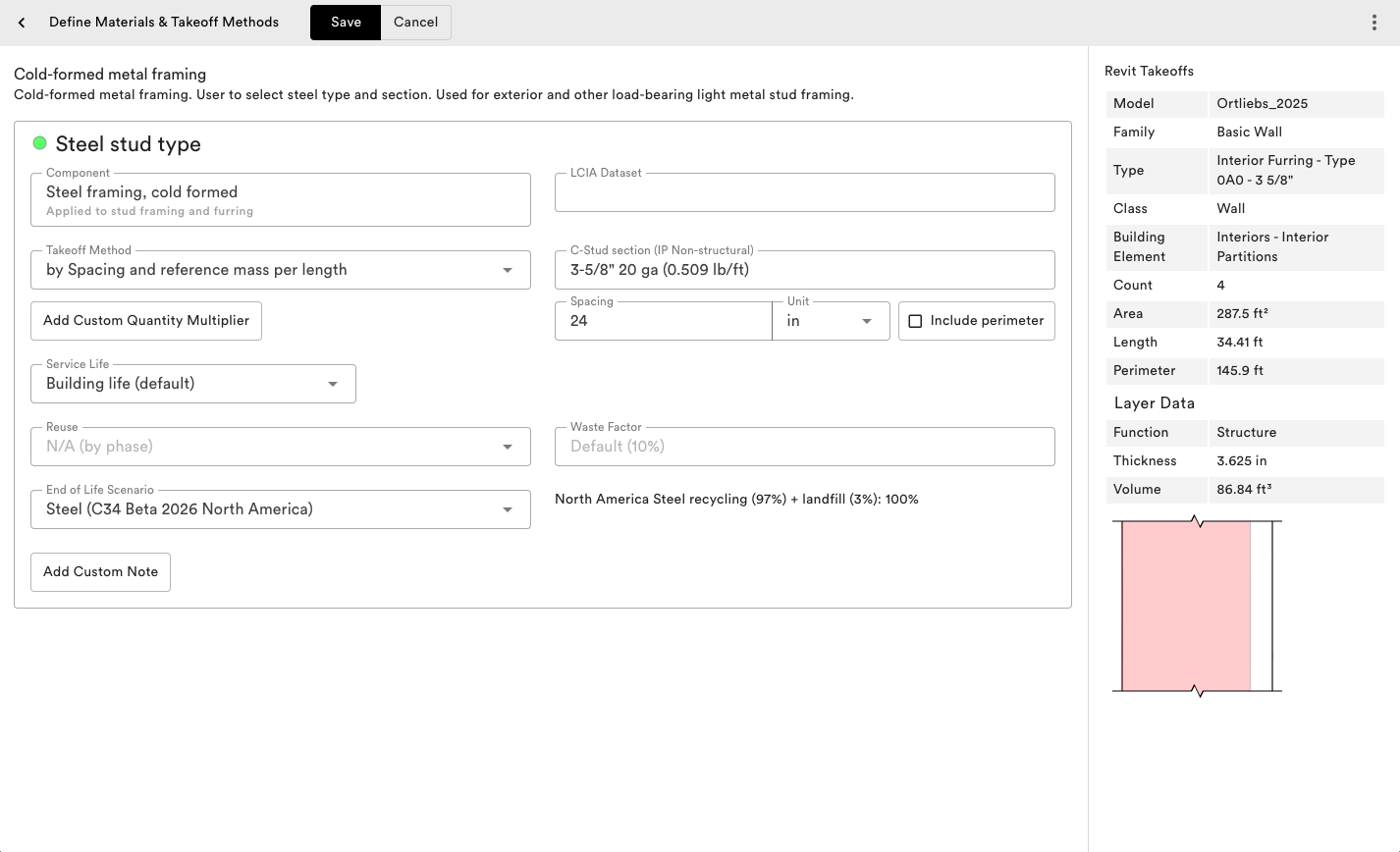
Choose the material behind each layer, then set its takeoff method.
Working with linked models
Section titled “Working with linked models”You can define materials on elements that come from a linked model just as you would your own. The definition saves into your model, not the link. Tally never writes to a linked file, since links are read-only while you're working in your own model.
Note that this has three consequences:
- Your changes stay with you. Definitions travel one way, from the link into your model. Anyone who opens Tally in their own model sees only the definitions saved there. To share a definition, send it to them directly.
- A reissued link won't overwrite your work. Each time a link reloads, Tally picks up whatever definitions that model carries and applies them only where you haven't set your own. Anywhere you've made a change, your version wins.
- You can go back. Click Reset to Linked Model in the family menu to clear your version and use the link's definition again.
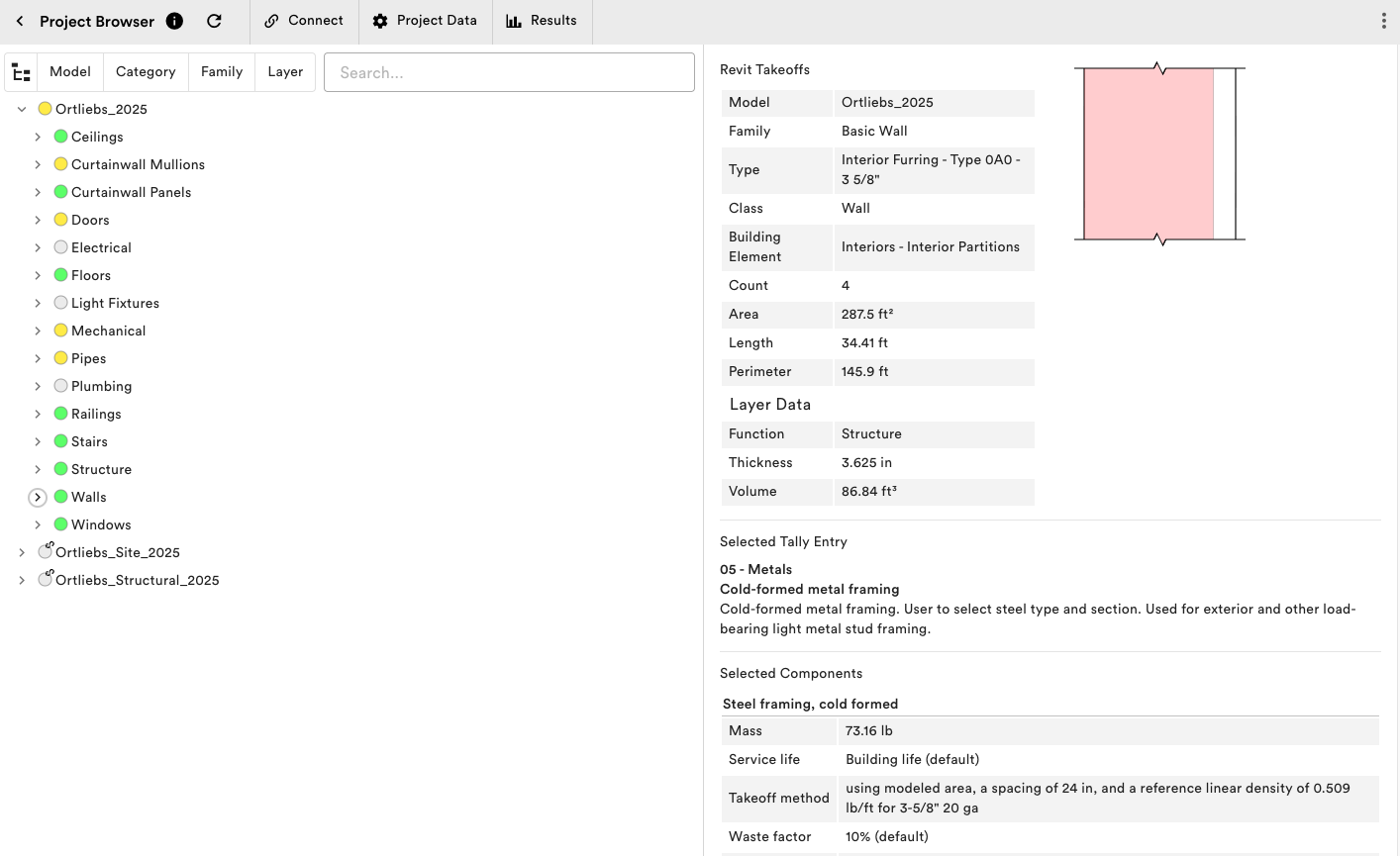
Reset to Linked Model, in the family menu.
Read the Results
Section titled “Read the Results”Results cover six TRACI 2.1 impact categories, plus mass, and break down by life cycle stage. The impact categories are global warming potential (GWP), acidification potential (AP), eutrophication potential (EP), ozone depletion potential (ODP), smog formation potential (SFP), and fossil fuel depletion (FFD).
From the Results screen you can export:
- Tabular Data (.csv)
- Full Results (.json)
- Full Results (.csv)
- Full Results (.pdf)
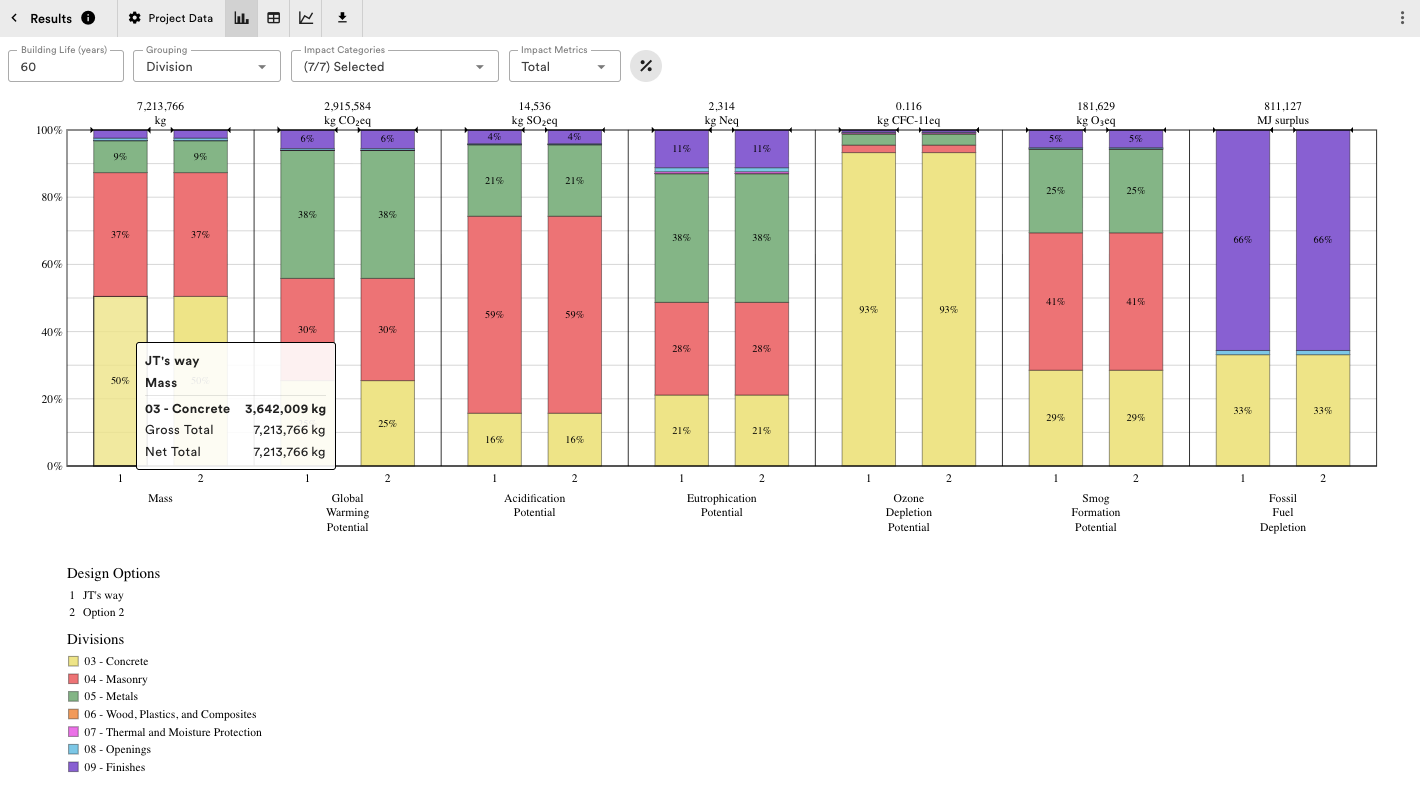
Impacts by category and life cycle stage.
Still have questions? See the Tally 2.0 FAQ.