# AIA DDx Reporting

{% hint style="info" %}
⚡ **Organization feature.** This feature is only available with a C.Scale Organization Account.
{% endhint %}

To create AIA DDx reports, make sure to set the [Target Scenario](/users-guide/compare-scenarios/set-target-scenario.md) for all the projects you want to include in the report.

In C.Scale, you can create AIA DDx reports in two ways: individually (for embodied carbon reporting) or in bulk (for holistic reporting).

### <mark style="color:$primary;">Individual Project Reporting</mark>

{% hint style="info" %}
Note that you cannot export any project-level reports until you have set a **target scenario**.
{% endhint %}

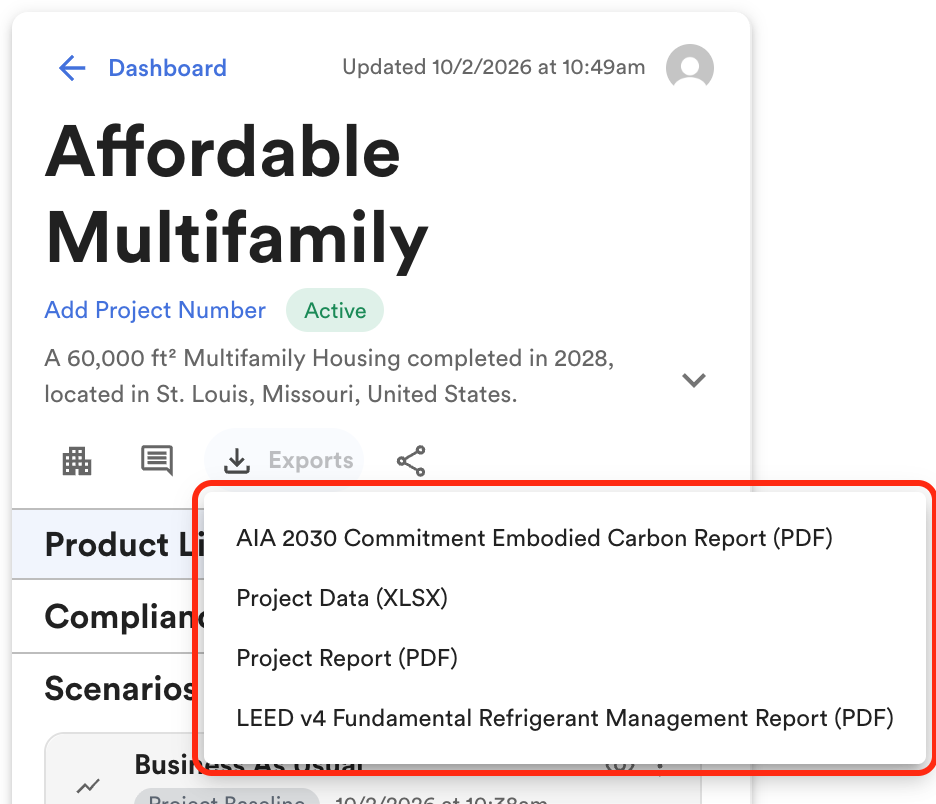
Inside the project, right above the Project Nam&#x65;**,** you'll find an Export button. Click on it and select the **AIA 2030 Commitment Embodied Carbon Report (PDF)**.

<div align="left"><figure><img src="/files/prWrR0VYkIvVHfJ68KeA" alt="" width="375"><figcaption></figcaption></figure></div>

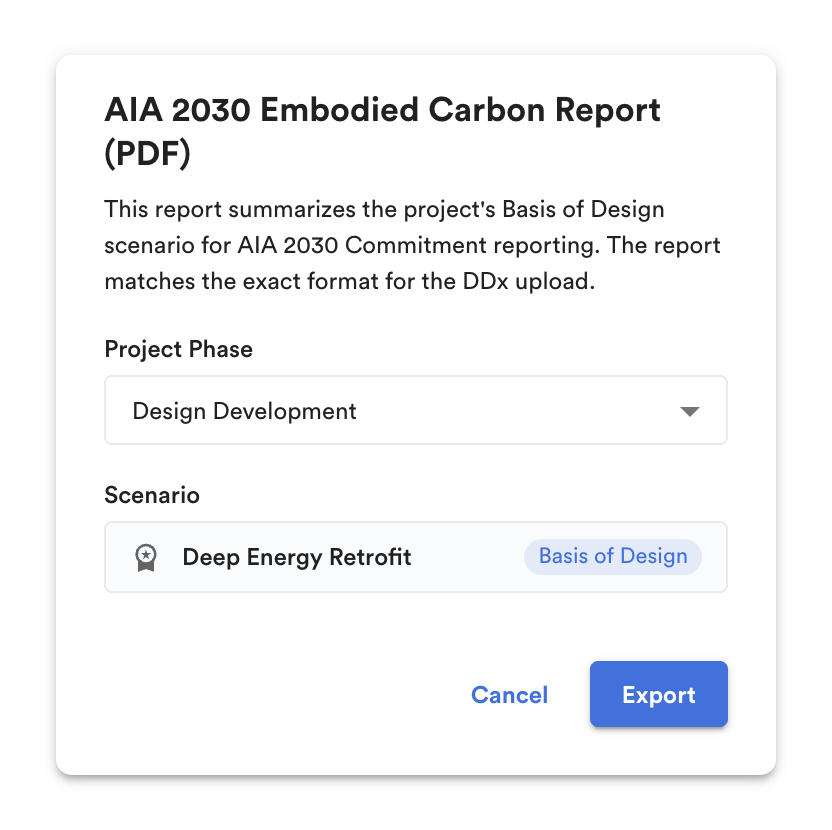
A pop-up menu opens up where you can choose the **Phase of Project** and **Export**.

<div align="left"><figure><img src="/files/nEbflZPAzilkfTmly3y0" alt="" width="375"><figcaption><p>Choose Phase of Project and Export.</p></figcaption></figure></div>

The PDF report is designed to mirror the AIA DDx Reporting interface, making it easy for you to report. Just copy the content from the boxes and paste it directly into the Reporting interface! Easy, peasy!
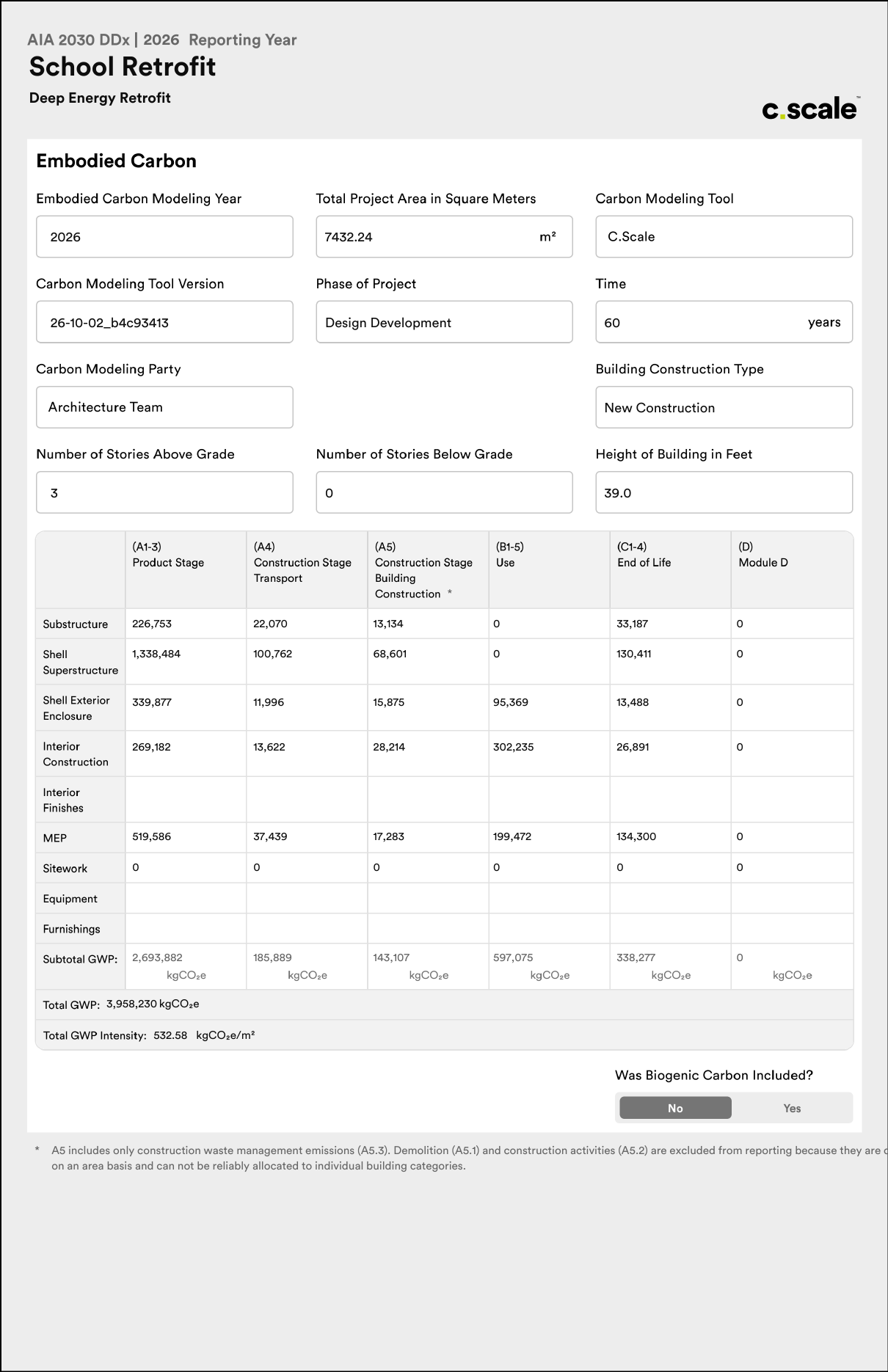
<div align="left"><figure><img src="/files/3kHMt5EuEBV8UnbgNWM8" alt="" width="563"><figcaption><p>AIA DDx PDF Report example generated from C.Scale.</p></figcaption></figure></div>

### <mark style="color:$primary;">Bulk Reporting</mark>

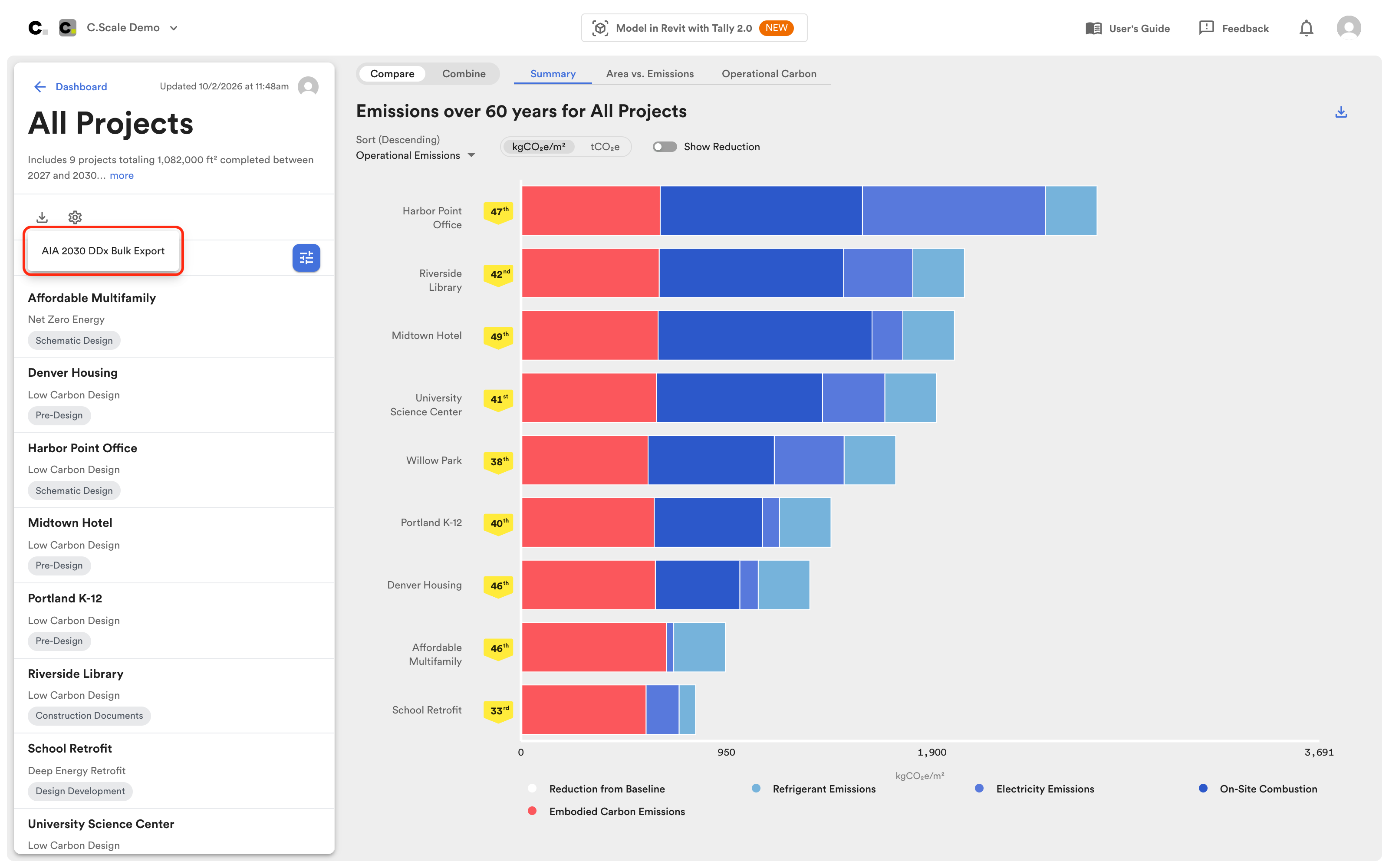
To bulk report multiple projects, go to a Portfolio or Collection and click on the **Export button** located int he project settings on the left-hand panel. From the drop-down, choose **AIA 2030 DDx Bulk Export.**

<figure><img src="/files/LBmLbxgctPthT2bcQ6Kx" alt=""><figcaption></figcaption></figure>

A pop-up menu will appear, displaying all the projects in that portfolio or collection. You can either select All Projects or choose individual projects one by one that you want to report on. Once you've made your selection, click the Export button to proceed.
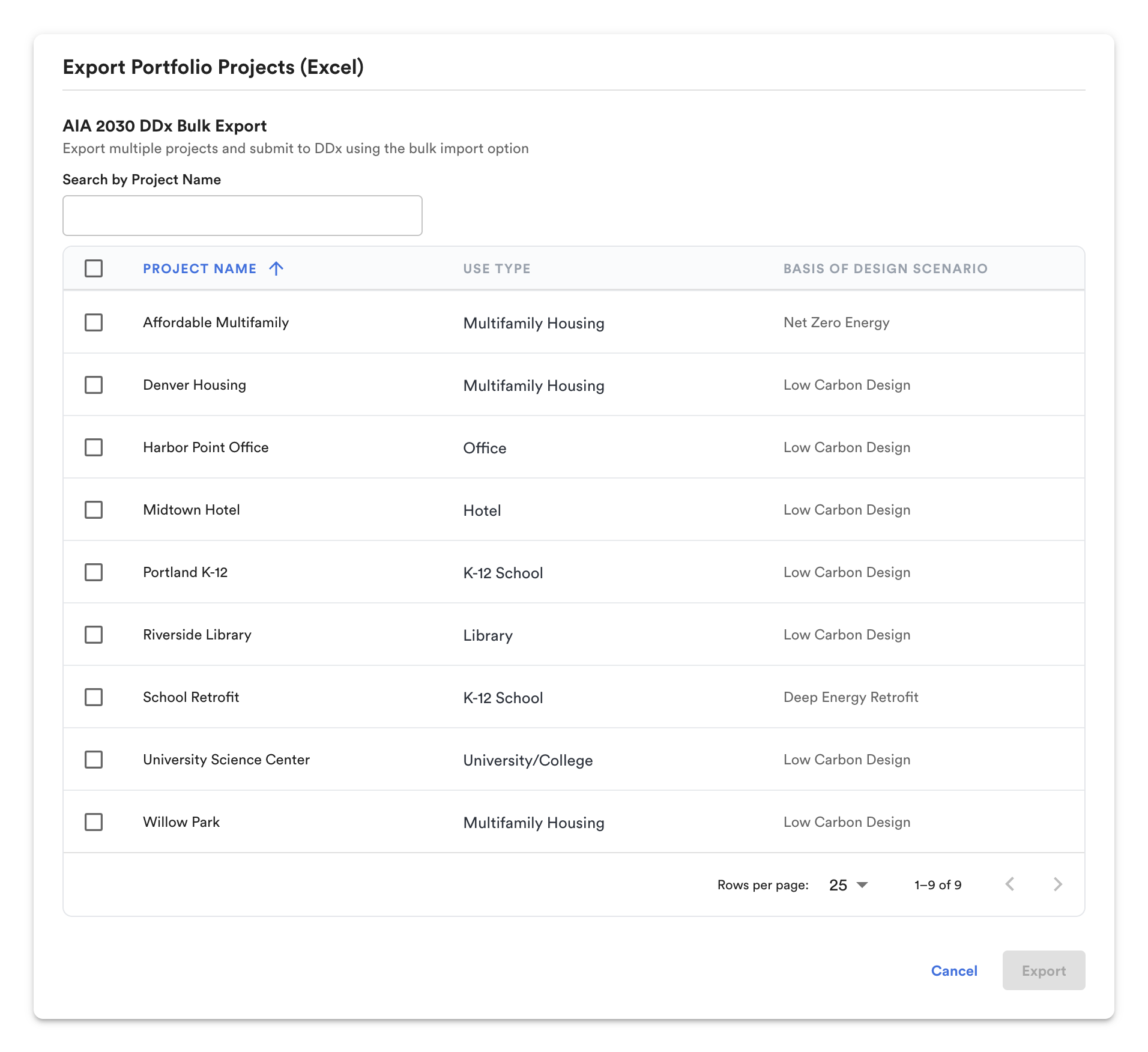
<figure><img src="/files/aYYz6wwDnmWZR5hgbq0q" alt=""><figcaption><p>Choose the projects you want to report on.</p></figcaption></figure>

The exported Excel file contains all the essential information you need for reporting to the AIA 2030 Commitment. Below is an example of what the file may look like.
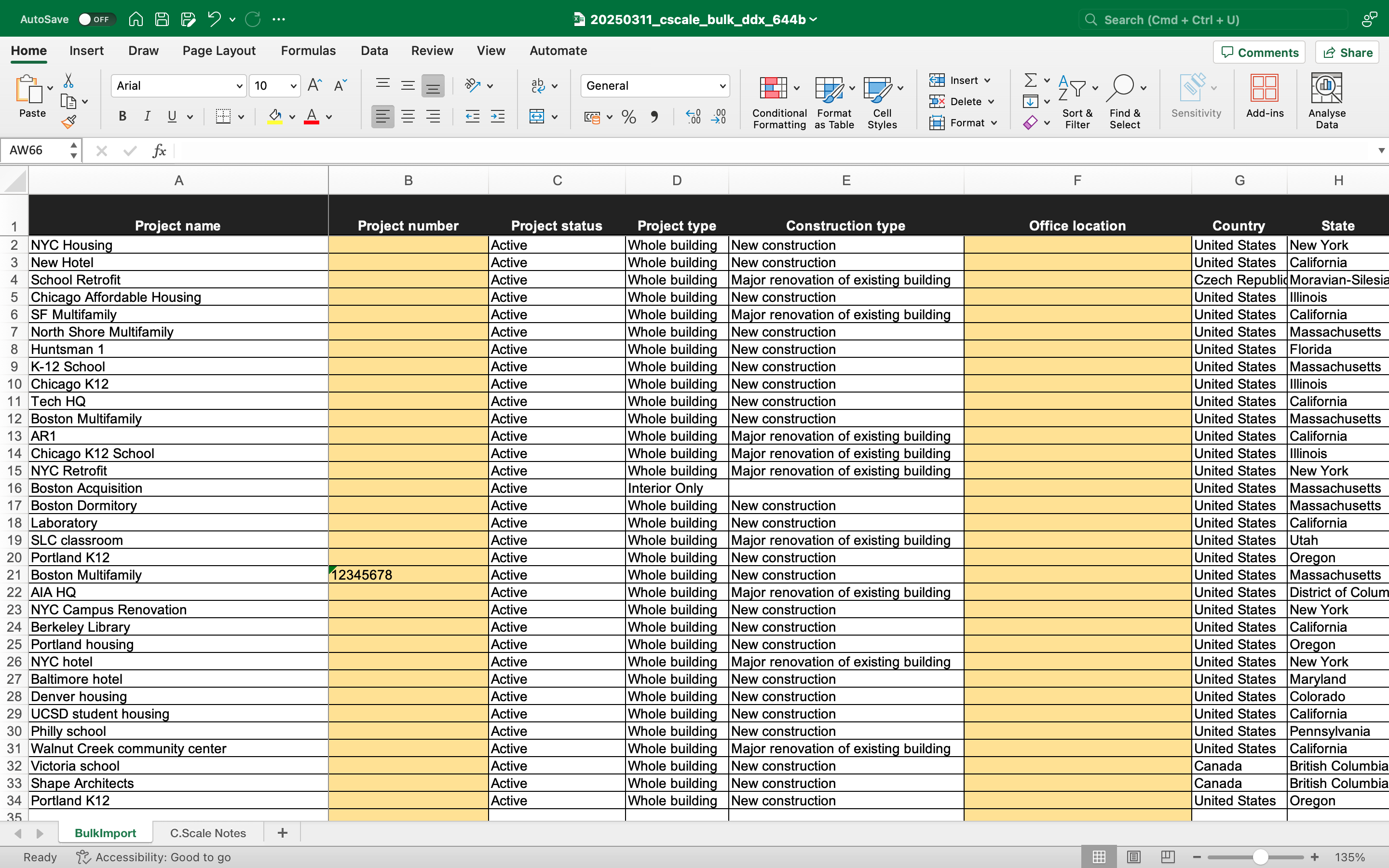
<figure><img src="/files/Xd3SSpLZ9UbkeUHe3CU6" alt=""><figcaption><p>AIA DDx Bulk Export Report example generated from C.Scale.</p></figcaption></figure>


---

# Agent Instructions: Querying This Documentation

If you need additional information that is not directly available in this page, you can query the documentation dynamically by asking a question.

Perform an HTTP GET request on the current page URL with the `ask` query parameter:

```
GET https://docs.cscale.io/users-guide/benefits-of-an-organization-account/aia-ddx-reporting.md?ask=<question>
```

The question should be specific, self-contained, and written in natural language.
The response will contain a direct answer to the question and relevant excerpts and sources from the documentation.

Use this mechanism when the answer is not explicitly present in the current page, you need clarification or additional context, or you want to retrieve related documentation sections.