Sharing and Collaboration
⚡ Organization feature. This feature is only available with a C.Scale Organization Account.
Collaborate within your organization
Section titled “Collaborate within your organization”Within an organization account, you can collaborate on projects with other members. To collaborate on projects in your personal account, you must first move them to the shared organization account. To do so, click on the 3-dot menu to the right of the project name. Choose Move Project.
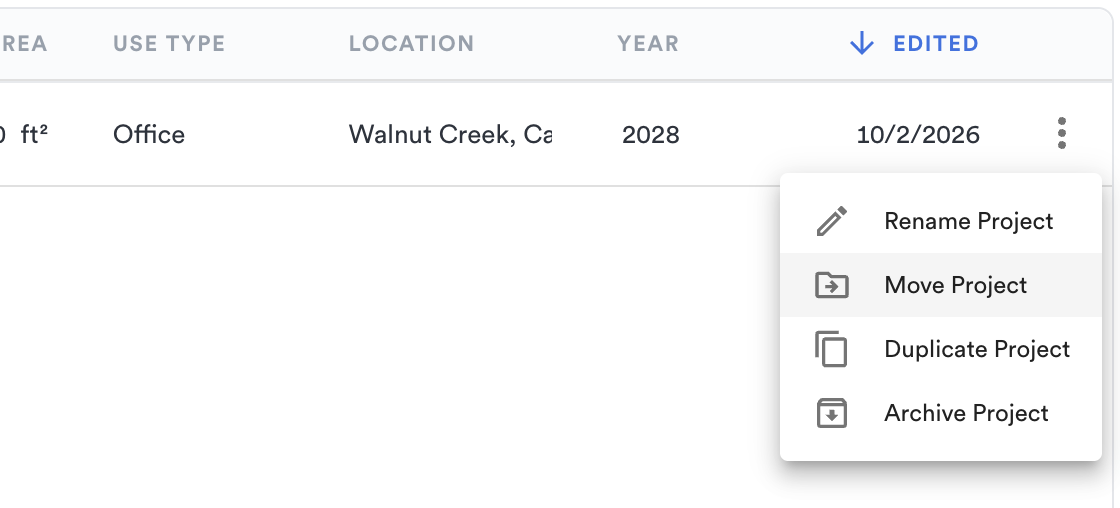
Choose Move Project from the 3-dot menu.
A pop-up window opens up, choose your Organization under Destination workspace and click Move 1 project.
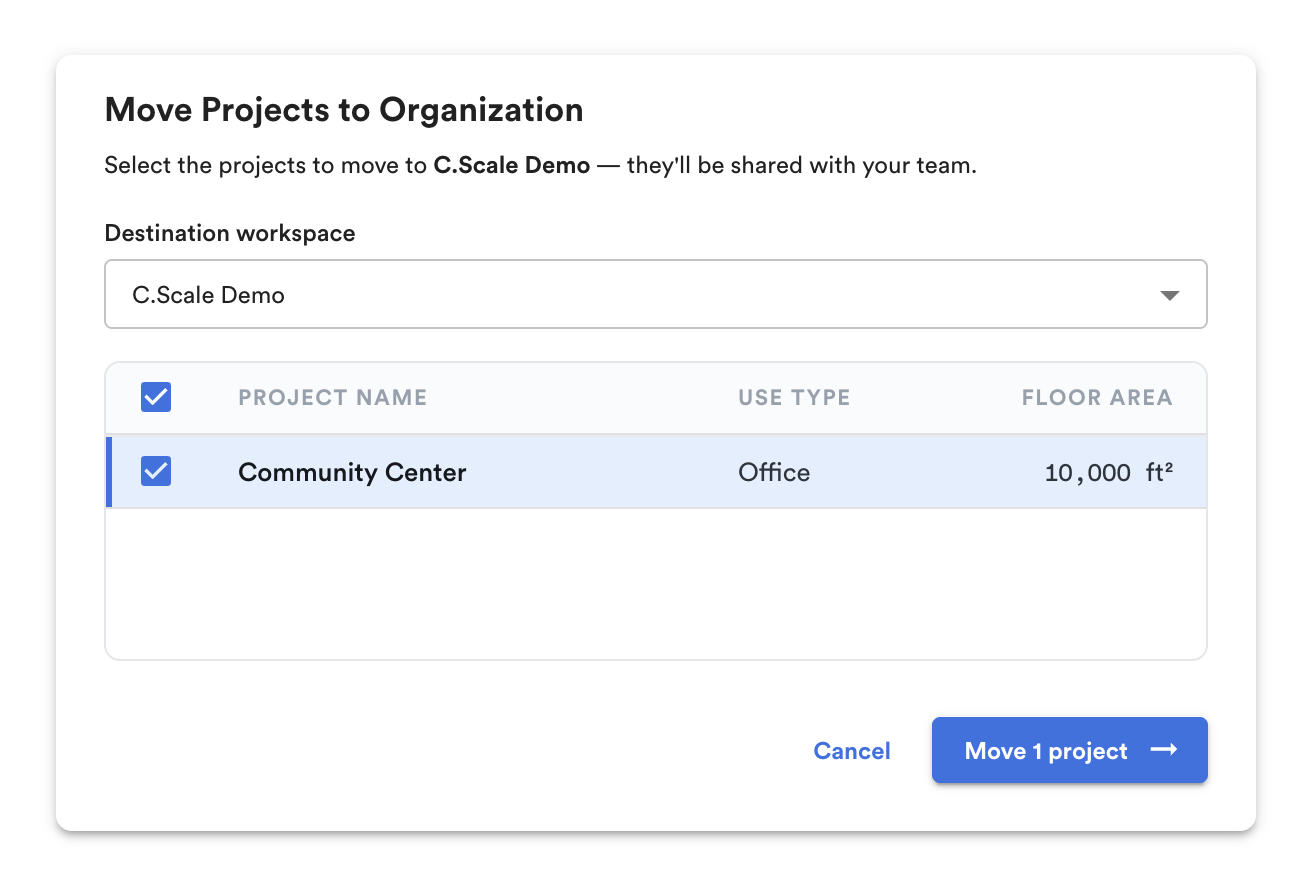
Select the destination workspace and move the project.
To switch to the Organization Account, click on the drop-down menu in the top-left corner of your screen where it currently says "Personal account." From there, select the organization name (in this case, C.Scale Demo).
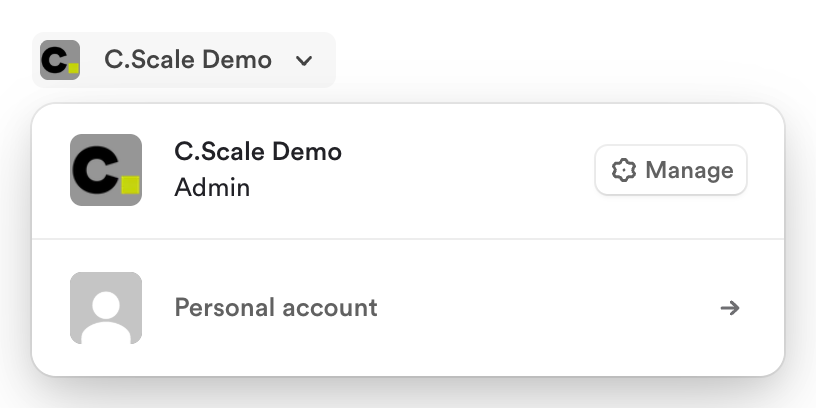
Choose your Organization name in the drop-down.
Awesome! You’re now on the Organization Dashboard. Here, you can view all the projects your organization is working on in real-time.
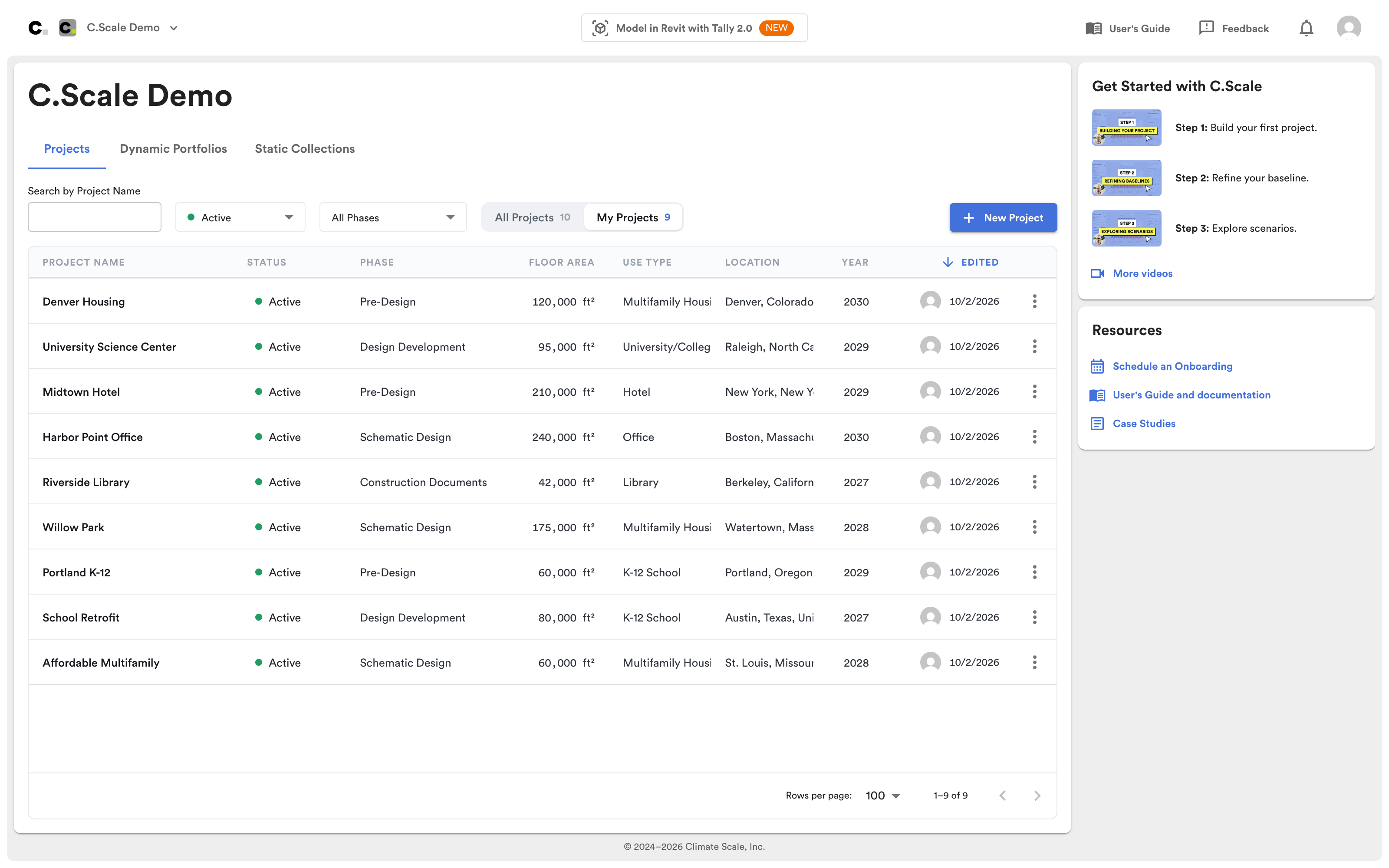
Organization Dashboard view.
Click on any project to see who in your organization has worked on it and made updates. In the left-hand panel, you’ll find a history showing when the project was last edited and by whom.
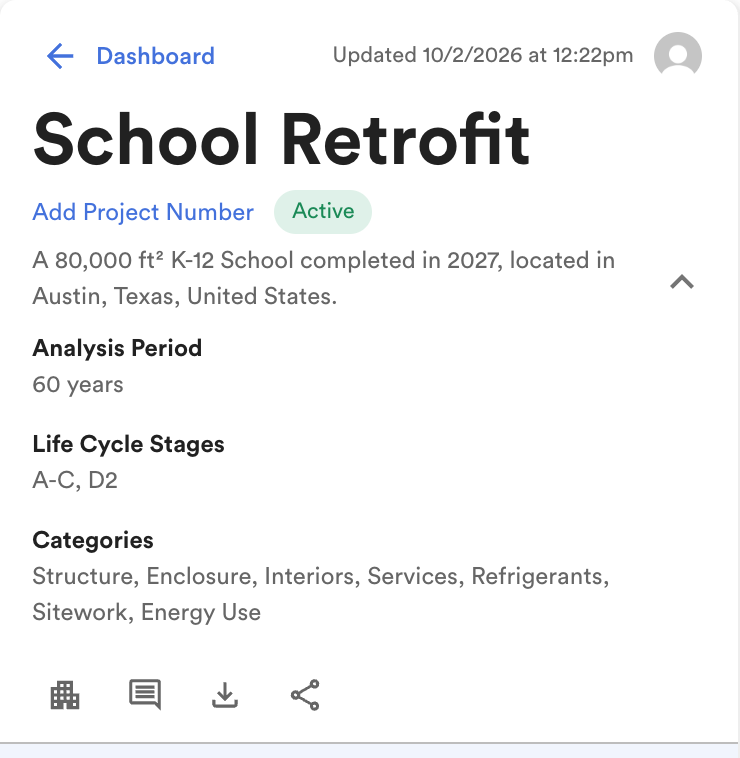
See a summary of the project scope.
Collaborate with external guests
Section titled “Collaborate with external guests”Building design and decarbonization is a team sport. Often, there will be many stakeholders who need to work on a model simultaneously - the structural engineer might input the structural quantities while an interior designer adds the room and finish schedule.
If these consultants are external to your organization, you will need to invite that consultant to collaborate on the project. This will give that person edit access to a specific project within your org.
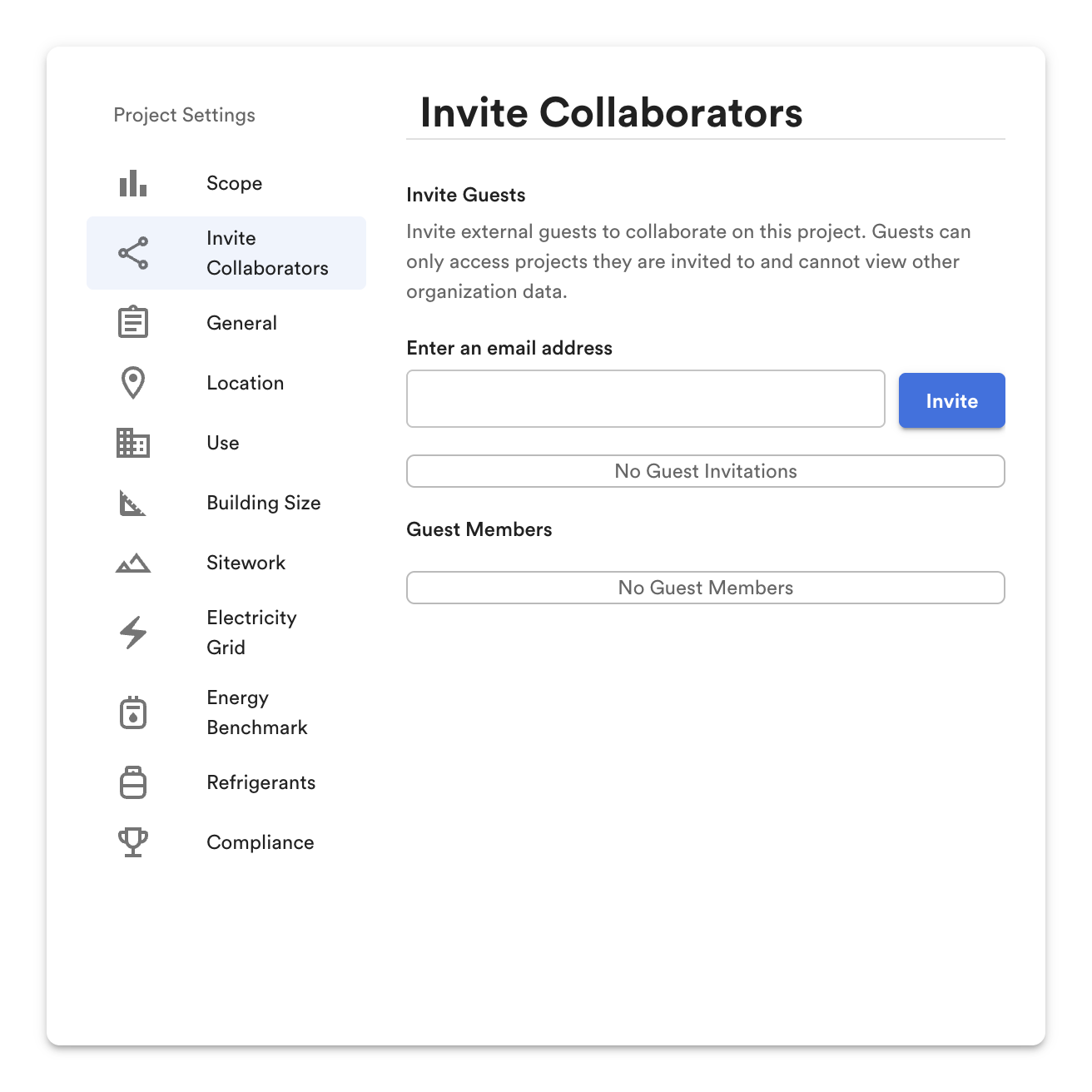
To collaborate, click the Collaborate icon in the upper left hand project panel (or open Invite Collaborators in the Project Settings panel).
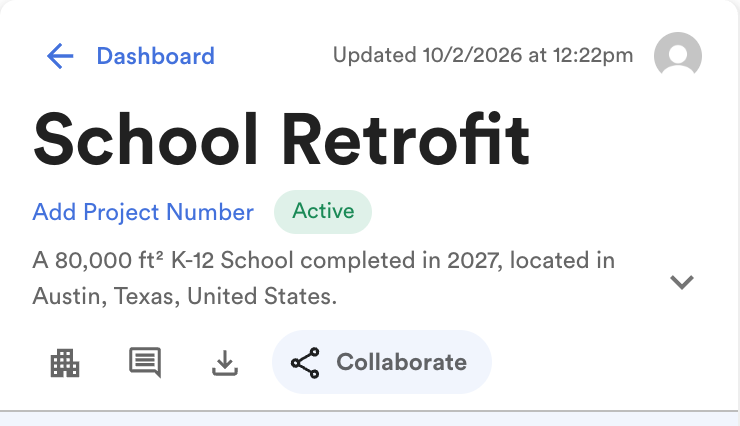
This will open the Project Settings panel with Invite Collaborators selected. This is where you can send invitations, view current external project members, and remove guests from the project.