
Tally User's Guide
Tally 2.0 is a Revit plug-in that runs a whole building life cycle assessment (wbLCA) on your model as you design it. It reports more than whole life carbon: six impact categories plus mass, across the full life cycle of the building. You associate the materials in your Revit model with LCA data, tell Tally how to translate model geometry into the quantities an assessment needs, and get results that update as the model changes, without leaving Revit.
Tally 2.0 connects to C.Scale, so takeoffs from a Revit model can be pushed into a C.Scale project as a scenario and worked on by people who don't use Revit. Connecting is not required, but we recommend it on every project.
About the beta
Section titled “About the beta”The beta is not a finished product. It will be incomplete, it will occasionally crash, and it may return incorrect results. Treat this version as a sandbox, not a production tool; models you build during the beta may not carry forward into later releases. The beta is not appropriate for reporting or compliance of any kind. We will collect detailed usage data about your use of Tally during the beta phase, beyond the current bounds of the terms of use. Do not add any private or confidential data to the beta release.
Who can use Tally 2.0
Section titled “Who can use Tally 2.0”Tally 2.0 is available to every organization on a paid C.Scale plan. You sign in with your existing C.Scale credentials. There's no separate Tally account, license key or serial number.
If your organization isn't on a paid plan and you'd like access, please get in touch.
What you need
Section titled “What you need”- Windows. Tally 2.0 is a Revit add-in and runs only on Windows.
- Revit 2024, 2025, 2026 or 2027. Earlier versions aren't supported.
- A C.Scale login belonging to a paid organization.
Tally 2.0 runs alongside Tally 1.0. Installing it won't disturb an existing Tally 1.0 setup, and both can sit in Revit at the same time.
Download the installer!
Section titled “Download the installer!”Run the installer
Section titled “Run the installer”Close Revit before you begin. Note that add-ins installed while Revit is running may not appear until it restarts.
Double-click the installer and follow the installation sequence.
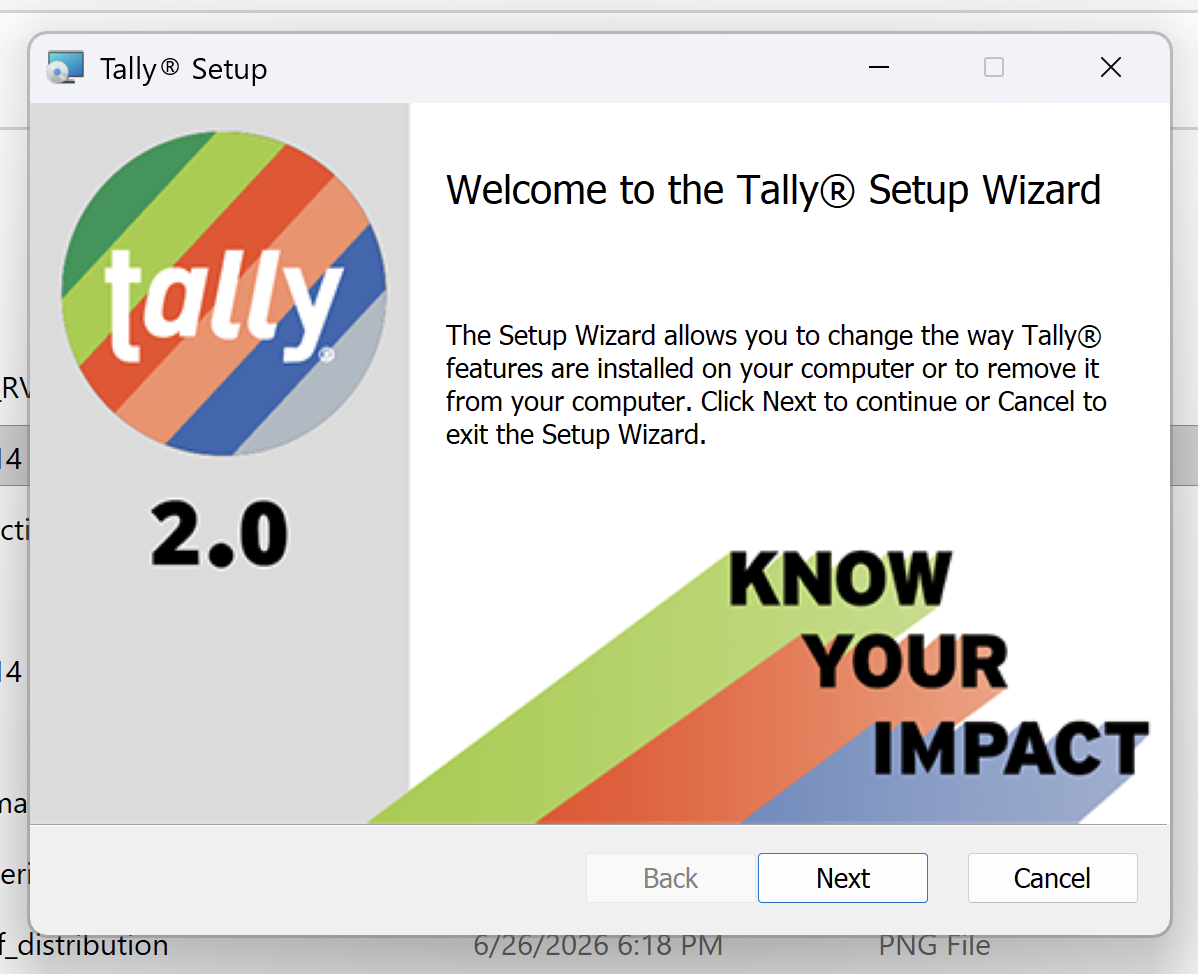
The first page of the installer.
Open Tally in Revit
Section titled “Open Tally in Revit”Reopen Revit. Tally appears in the top ribbon under Add-Ins → Tally 2.0.
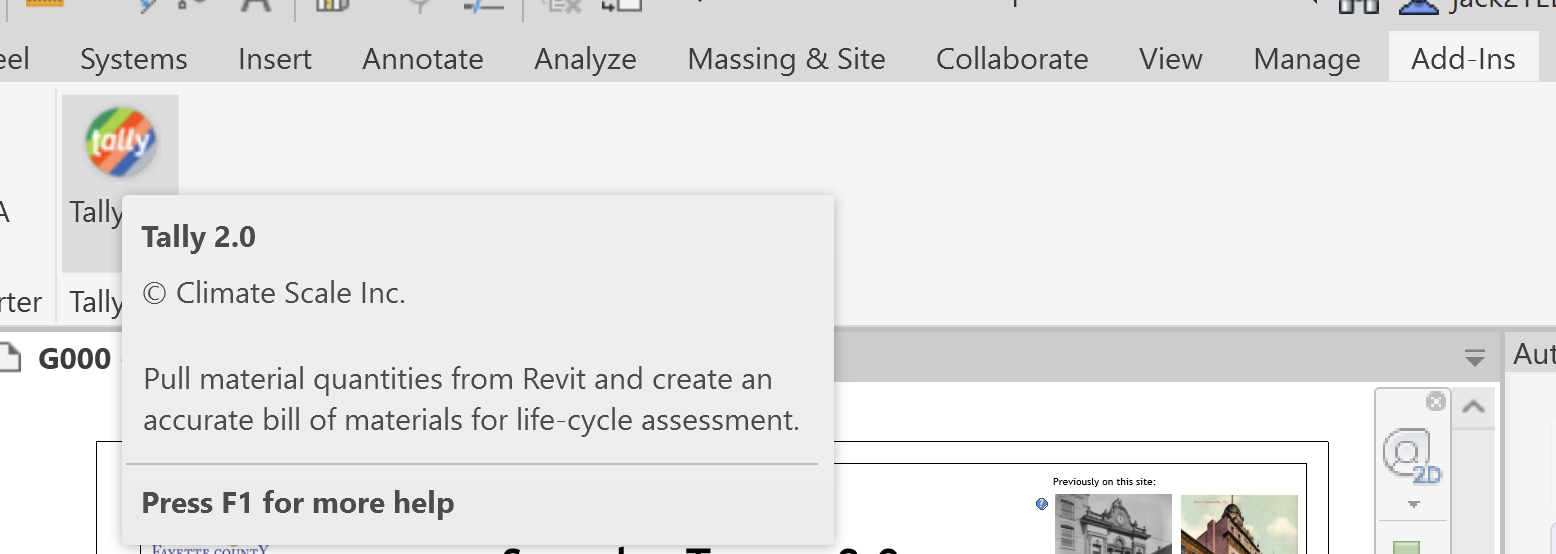
Tally 2.0 in the Add-Ins tab of the Revit ribbon.
Sign in
Section titled “Sign in”Log in with your existing C.Scale credentials.
Once you're logged in, select the organization you want to work under. If you belong to more than one, choose the paid organization you're running Tally through.
You're in. Next, see Modeling in Tally 2.0 for the workflow, or the Tally 2.0 FAQ for short answers.