
C.Scale MCP Server
The C.Scale MCP server lets AI assistants read and edit your C.Scale Enterprise data from a chat. That includes Claude, ChatGPT, Cursor, VS Code and any other tool that supports the Model Context Protocol. You can ask for project results, create projects in bulk, try decarbonization scenarios and build charts or reports, all without leaving the conversation.
The assistant acts as you: it sees the same organizations, projects and scenarios you can see in the web app, and nothing more.
Connection details
Section titled “Connection details”These are the same for every client:
| Setting | Value |
|---|---|
| Server URL | https://app.cscale.io/api/mcp |
| Transport | Streamable HTTP (remote server) |
| Authentication | OAuth: sign in with your C.Scale account when prompted |
You need a C.Scale Enterprise account. No API key is required.
Setup for Claude
Section titled “Setup for Claude”Works in the Claude desktop app and on claude.ai.
1. Open Customize → Connectors and click Add
Section titled “1. Open Customize → Connectors and click Add”In the left sidebar, open Customize, select the Connectors tab, then click + Add and choose Add custom connector.
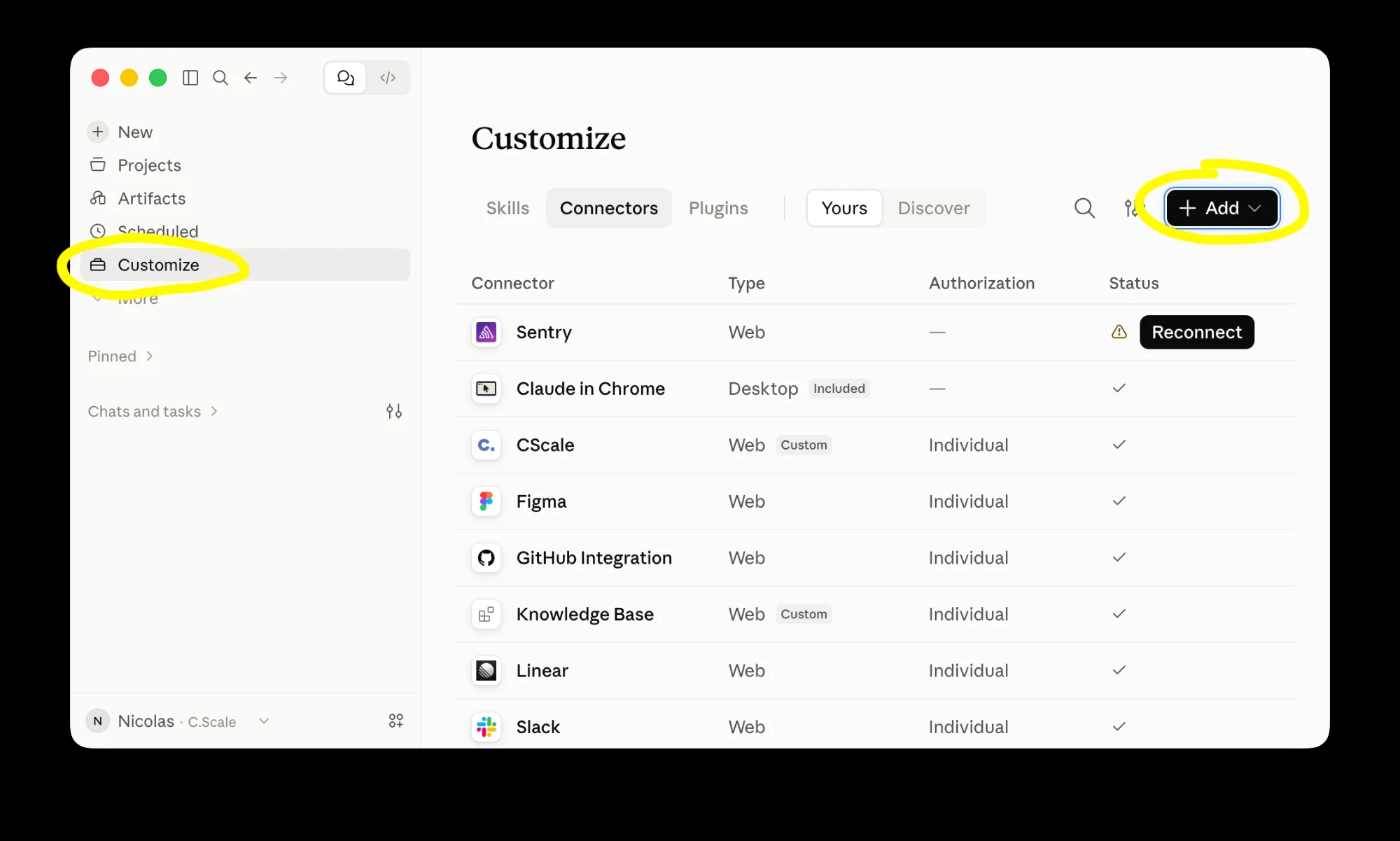
Customize → Connectors → Add.
2. Enter the C.Scale server details
Section titled “2. Enter the C.Scale server details”| Field | Value |
|---|---|
| Name | CScale |
| Remote MCP server URL | https://app.cscale.io/api/mcp |
Click Continue.
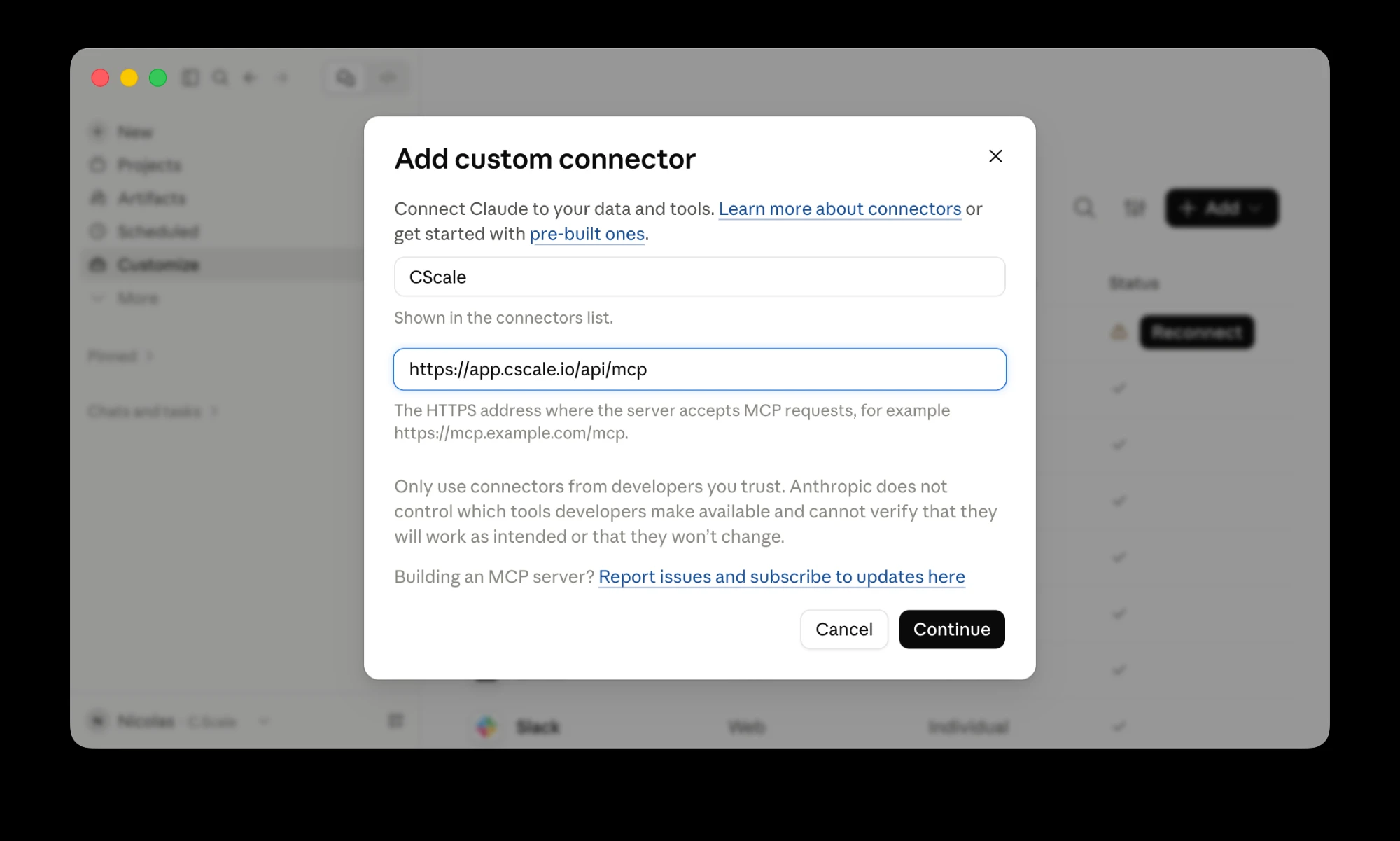
The Add custom connector dialog.
3. Sign in with your C.Scale account
Section titled “3. Sign in with your C.Scale account”A C.Scale sign-in window opens. Log in with the account you use for app.cscale.io and approve access. Once that's done, CScale shows up in your connectors list marked Custom, with a ✓ under Status.
4. Try it
Section titled “4. Try it”Start a new chat and ask "What can you do with C.Scale?". Claude lists what it can do with your projects and scenarios.
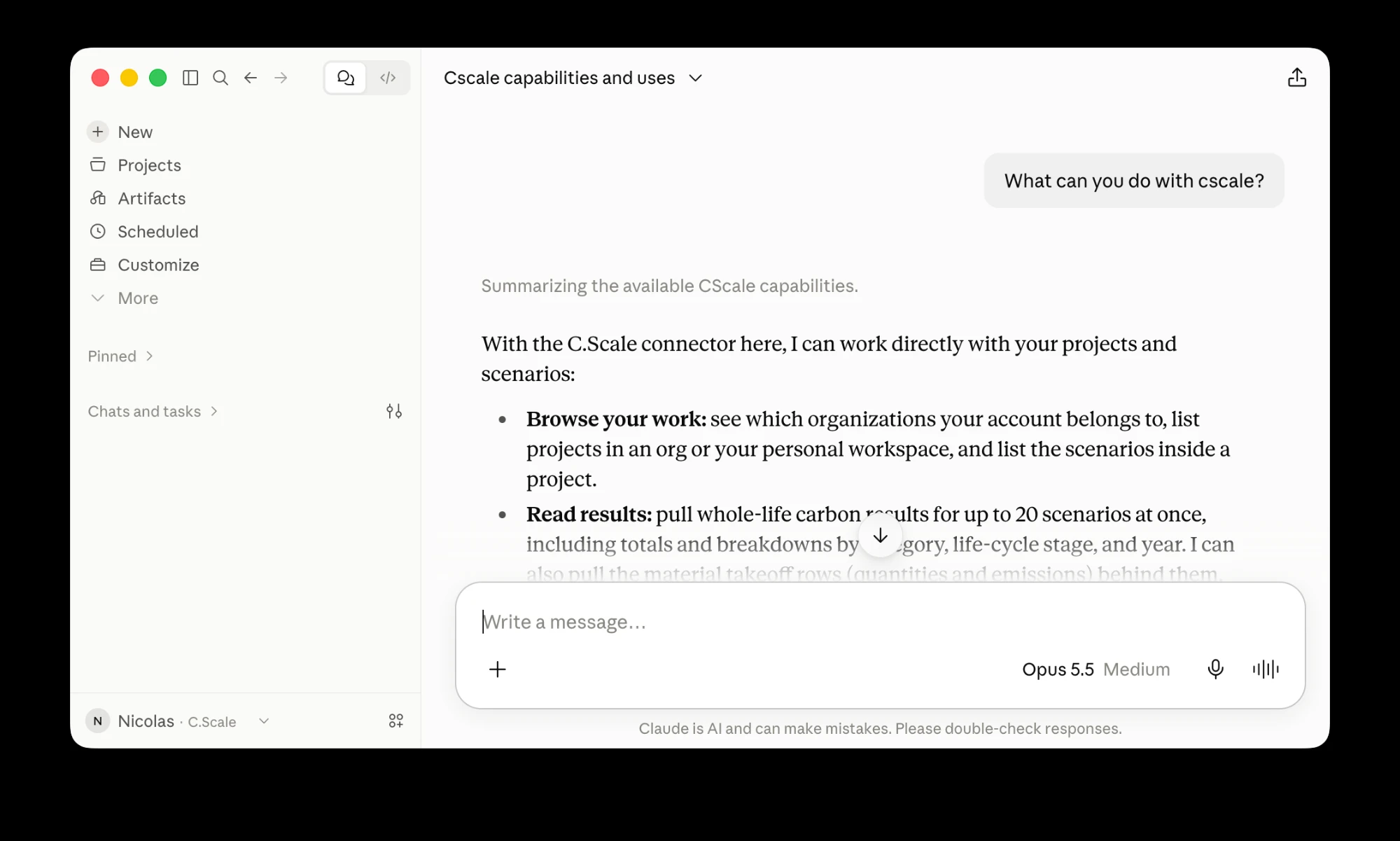
A first chat with the C.Scale connector.
Using another AI assistant
Section titled “Using another AI assistant”C.Scale isn't tied to Claude. Any MCP client that supports remote servers with OAuth sign-in can connect. Add a new remote (HTTP) MCP server pointing at https://app.cscale.io/api/mcp, then sign in with your C.Scale account when the browser window opens.
Common examples:
-
ChatGPT: add a custom connector (it may sit behind developer mode, depending on your plan) and paste the server URL.
-
Claude Code:
Terminal window claude mcp add --transport http cscale https://app.cscale.io/api/mcp -
Cursor (
~/.cursor/mcp.json):{ "mcpServers": { "cscale": { "url": "https://app.cscale.io/api/mcp" } } } -
VS Code / GitHub Copilot (
.vscode/mcp.json):{ "servers": { "cscale": { "type": "http", "url": "https://app.cscale.io/api/mcp" } } }
Menus change often, so if a step above doesn't match what you see, check your tool's documentation for "add a remote MCP server". The C.Scale details stay the same.
What you can do
Section titled “What you can do”The examples below work with any connected assistant.
Browse and gather data across projects
Section titled “Browse and gather data across projects”The assistant can list the organizations you belong to, the projects in an organization or in your personal workspace, and the scenarios inside each project. It can work one project at a time or go across a whole set of projects.
Try:
- "List all projects in our organization and their baseline scenarios."
- "Which of our office projects in California have the highest embodied carbon intensity?"
Read carbon results and material takeoffs
Section titled “Read carbon results and material takeoffs”For up to 20 scenarios at a time, the assistant can pull whole-life carbon results (totals, plus breakdowns by category, life-cycle stage and year) and the material takeoff rows (quantities and emissions) behind them.
Try:
- "What's the whole-life carbon of the Basis of Design for Project X, in tonnes and per m²?"
- "Which five materials contribute most to embodied carbon on this scenario?"
Build charts and reports
Section titled “Build charts and reports”The assistant can pull results from many scenarios and projects and turn them into charts, tables, dashboards or written reports. Use it for client decks, portfolio reviews or internal benchmarking.
Try:
- "Make a bar chart comparing embodied vs. operational carbon for every project in our portfolio."
- "Write a one-page summary of Project X's carbon results for the client, with a stage breakdown chart."
Create projects, one at a time or in bulk
Section titled “Create projects, one at a time or in bulk”Describe a project in plain language or attach a spreadsheet, and the assistant creates the projects in C.Scale. It geocodes each address and fills any blank baseline design fields with C.Scale defaults. Every new project comes with the C.Scale standard scenario set.
- The assistant always asks which organization (or your personal workspace) to create projects in before it creates anything.
- Up to 25 projects per call. The assistant stops at 100 projects in one task and asks before it continues.
- AIA 2030 import: attach an AIA 2030 DDX Project Download export and the assistant maps it onto C.Scale projects (use types, energy codes and so on). It tells you which rows it couldn't map instead of guessing.
Try:
- "Create a 120,000 sf office project at 1201 3rd Ave, Seattle."
- "Here's our AIA 2030 DDX export, import these projects into our organization."
Explore decarbonization scenarios
Section titled “Explore decarbonization scenarios”The assistant can read a scenario's assumptions, then either copy it as a new scenario with changes or edit an existing scenario. It works like a design partner:
- It reads the current scenario first.
- If your request is vague ("how do we lower the carbon?"), it asks at most two short questions to narrow things down, then proposes one concrete scenario.
- It confirms the name, description, source scenario and changes with you before saving anything.
- After saving, it compares the new results with the source and tells you what moved.
New scenarios never replace your Baseline or Basis of Design.
Try:
- "Copy the baseline and switch the structure to mass timber. What changes?"
- "We need to cut embodied carbon by 20% on this project. What should we try?"
- "On the 'Low-carbon concrete' scenario, raise the SCM replacement to 40%."
Coming soon
Section titled “Coming soon”- Compare scenarios and flag key differences. Side-by-side diffs of scenario inputs and outputs ("show me the strategies we've tried and what they did").
- C.Scale documentation in chat. Ask methodology and how-to questions and get answers from the C.Scale docs.
Good to know
Section titled “Good to know”- Permissions: the assistant only accesses data your C.Scale account can access. Disconnect anytime from your assistant's connector or MCP settings.
- Writes are confirmed: creating projects and creating or editing scenarios are write actions. The assistant checks with you first, and most clients also ask you to approve each tool call.
- Units: results come in kgCO2e (the assistant converts to tonnes when asked). Scenario inputs use the project's unit system.
- Feedback: tell your assistant "send feedback to C.Scale: …" and it goes straight to our team.